 Stagehand
Guide
Backing pads and song tracks
A pad is a long file under the chart, chosen by the key the room hears. A song track is a file attached to one song, for singing or playing along. They can run together. The app includes neither. You bring the files.
Backing pads
The waveform in the song menubar starts the pads, or stops them when they are on. A small light on it shows what they are doing: green and pulsing while a pad sounds, amber when paused, orange when pads are on but silent (no key, or no file for the key), and grey when stopped. The light does not pulse if you have Reduce Motion on, and the panel says the same thing in words. The chevron beside the waveform opens the Pads panel. Pads stay off until you start them.
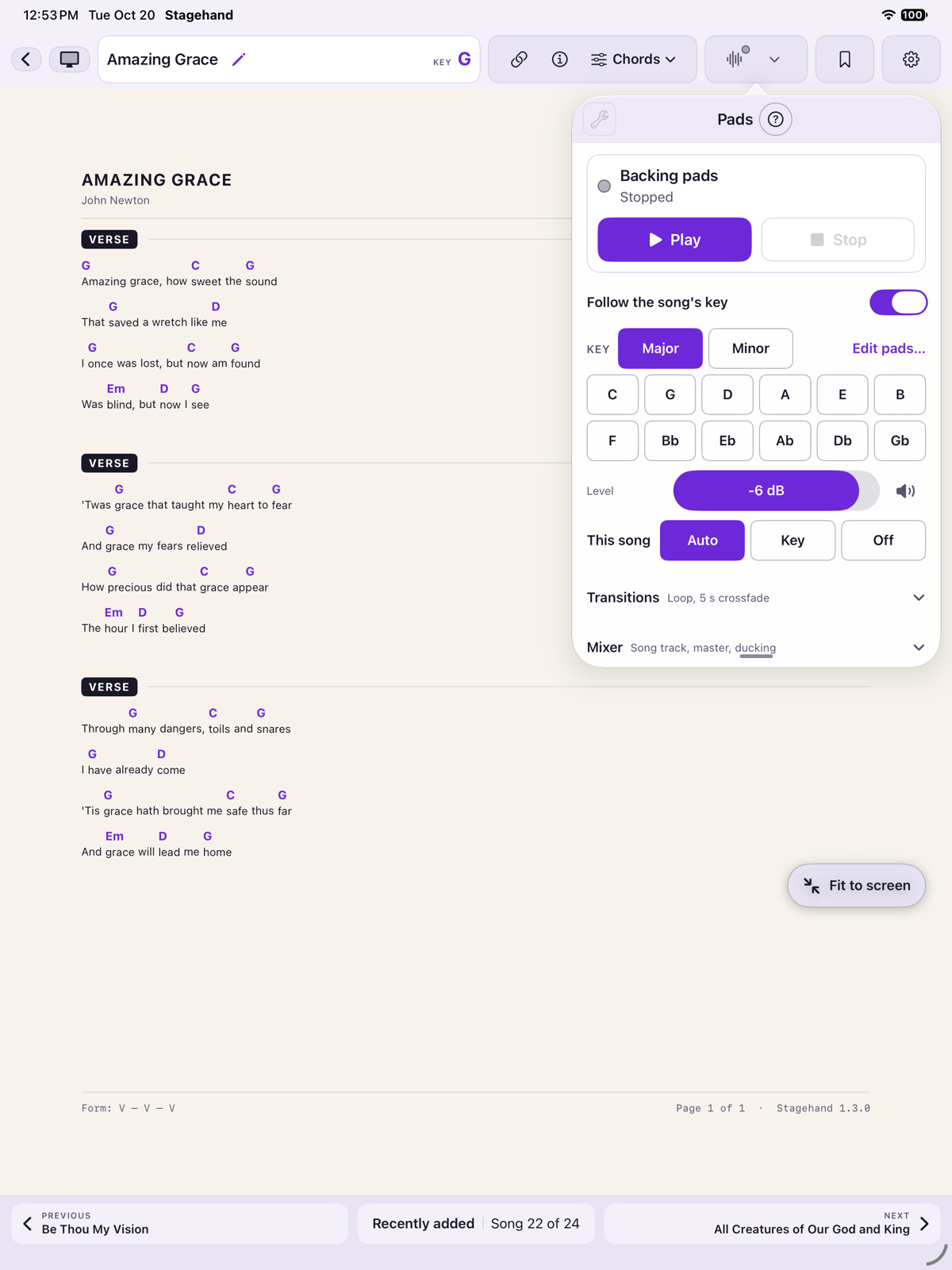
The Pads panel
The panel is ordered by how often you reach for each control, so the common ones are in view without scrolling.
- Play starts the pad with a fade in of about a second. After a pause it carries on from where it stopped. The button becomes Pause while a pad plays.
- Pause fades the pad out and holds it. A song track that is playing keeps going.
- Stop fades the pad out and switches it off. Play then starts again from the beginning. Stop also clears a pause caused by a call or unplugged headphones.
- The status line under the title says what is happening, for example Playing: Warm Pad · G major, Paused, No pad for E minor or Choose a key to play.
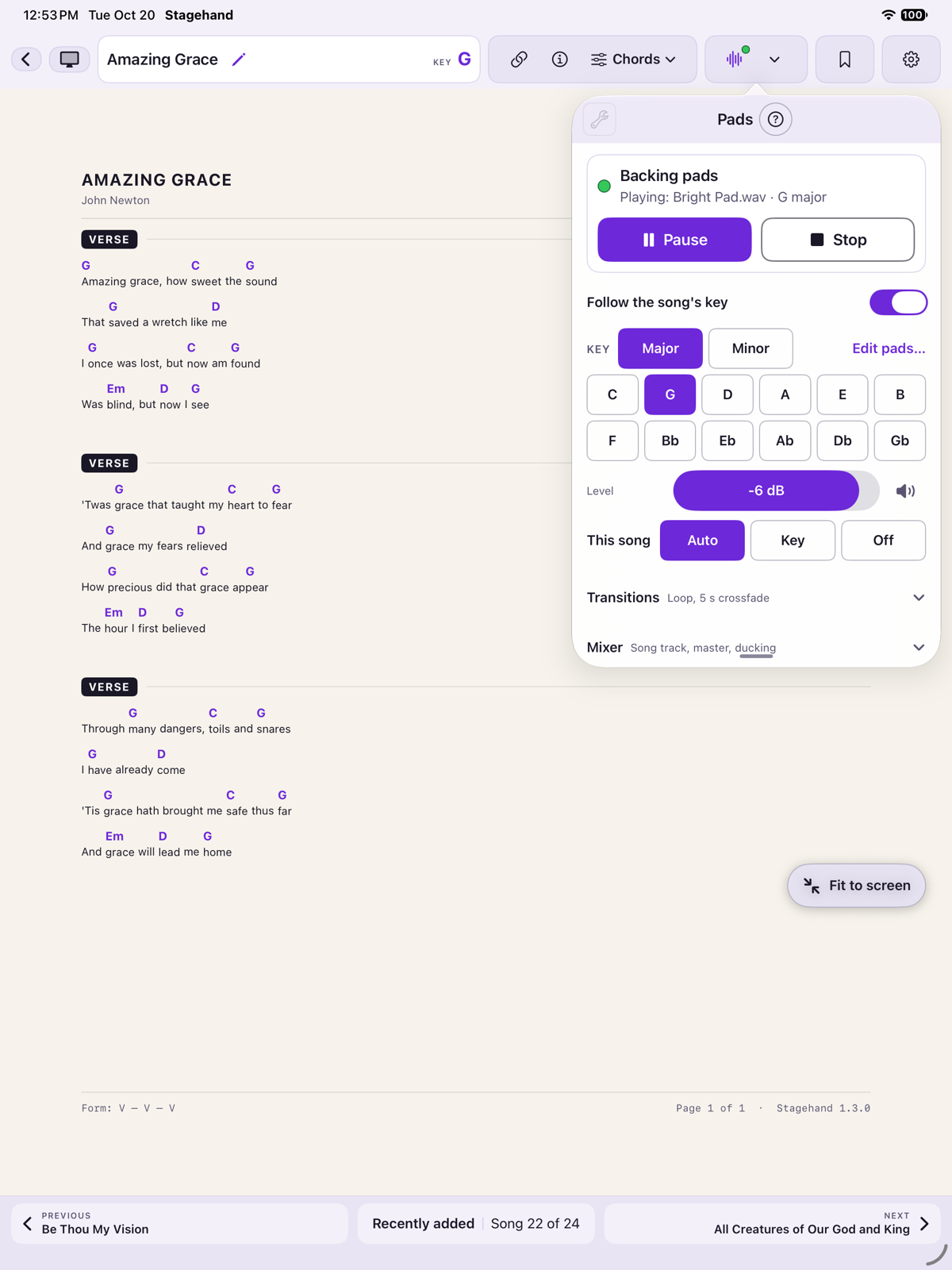
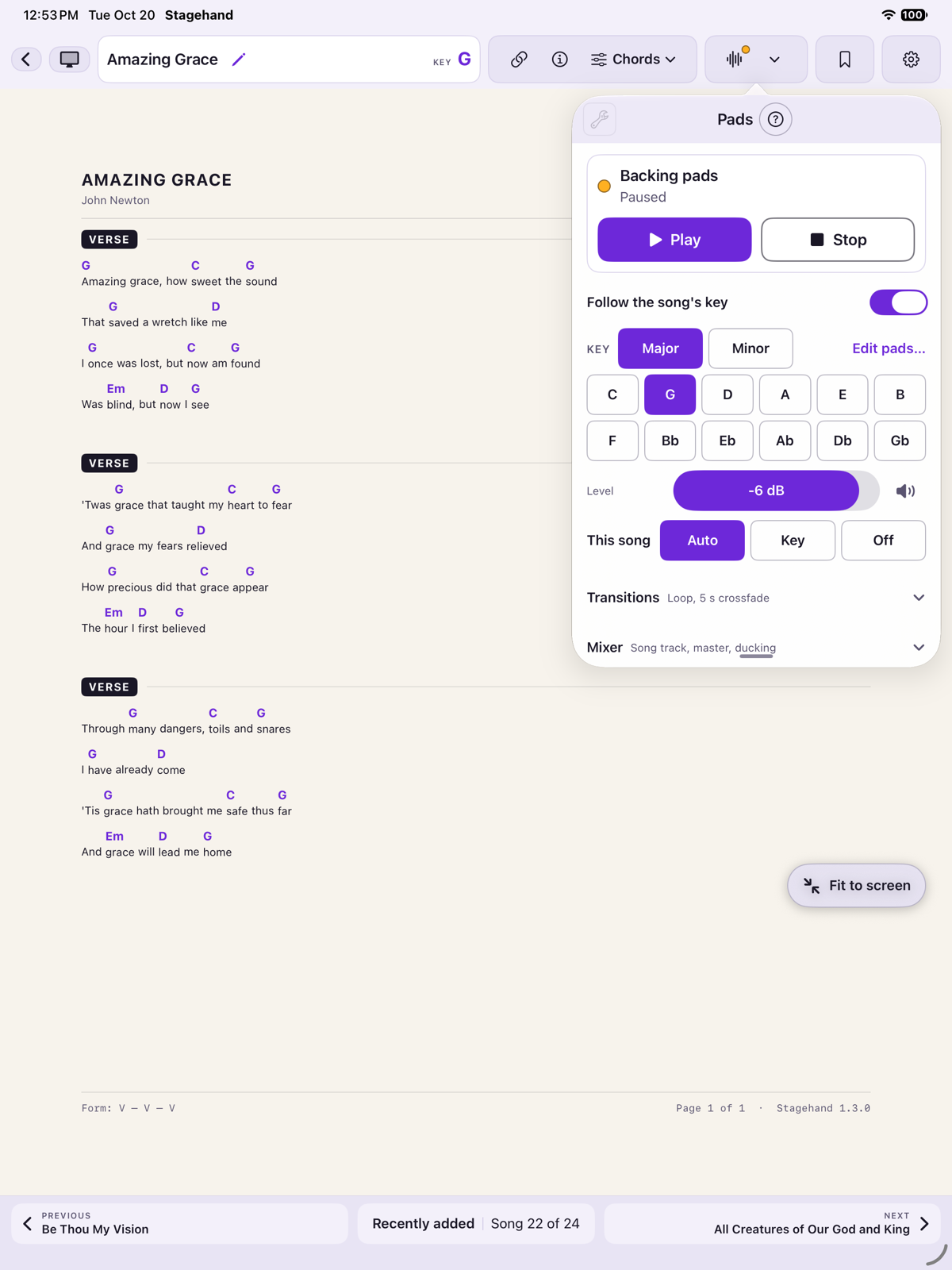
Tap any key in the grid and the pad starts in that key, whether the pads were on or not. Two sections fold away and remember whether you left them open:
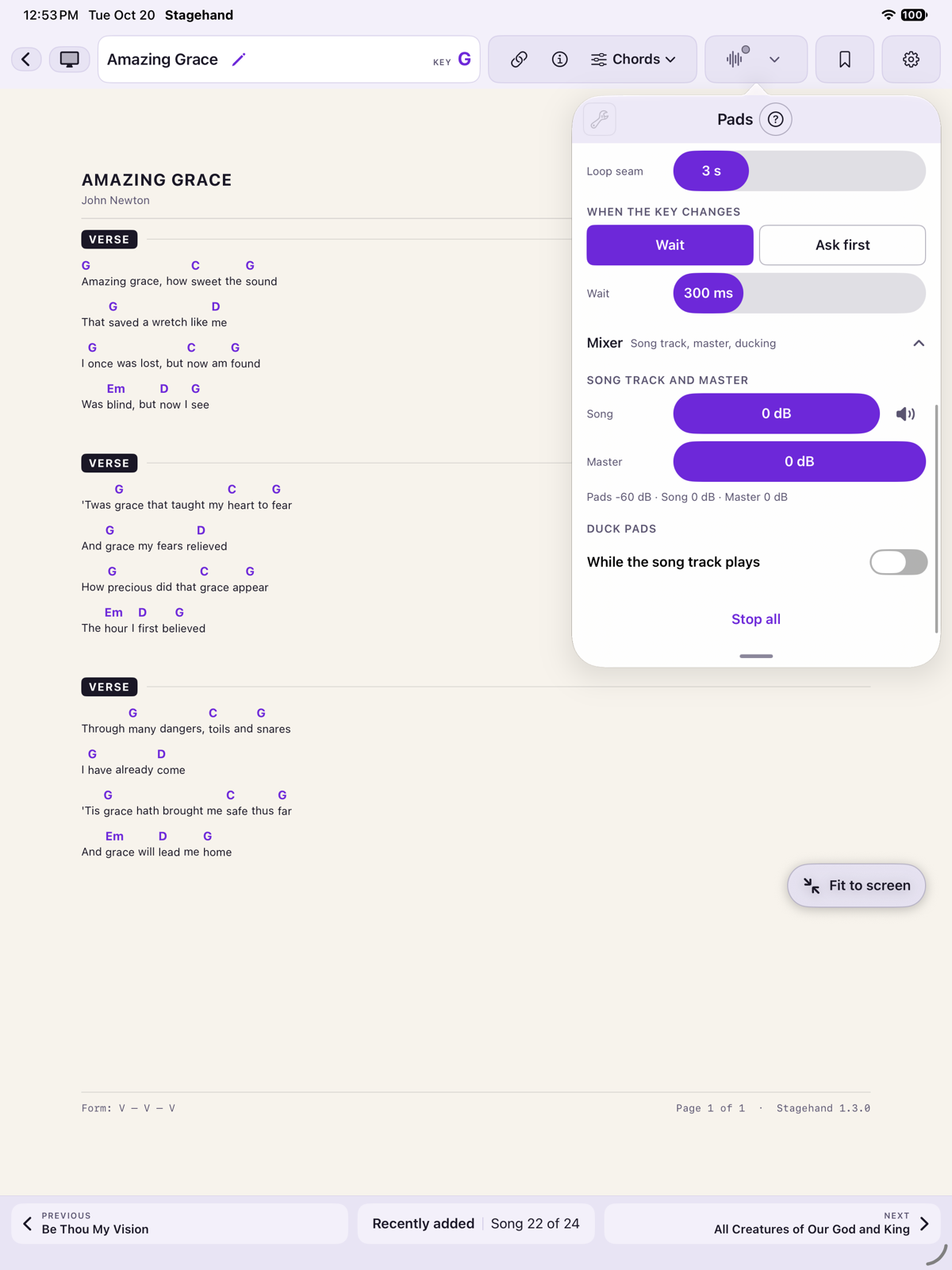
- Transitions: Loop keeps the pad going. Crossfade is how long one pad fades into the next when the key changes, from 0 (a straight cut) to 15 seconds. Loop seam blends the end of the file into its start so there is no gap or click. When the key changes is Wait (a moment, 300 ms to start, so only the last of several quick key changes plays) or Ask first, which shows a banner so you choose Change or Keep.
- Mixer: the song track and master levels, Duck pads, and Stop all. See Levels.
Every panel has a ? beside its title. In the Pads panel it opens this panel’s own help: what each control does, why the light is a colour, and what to try if nothing plays. The arrow at the left returns to the controls.
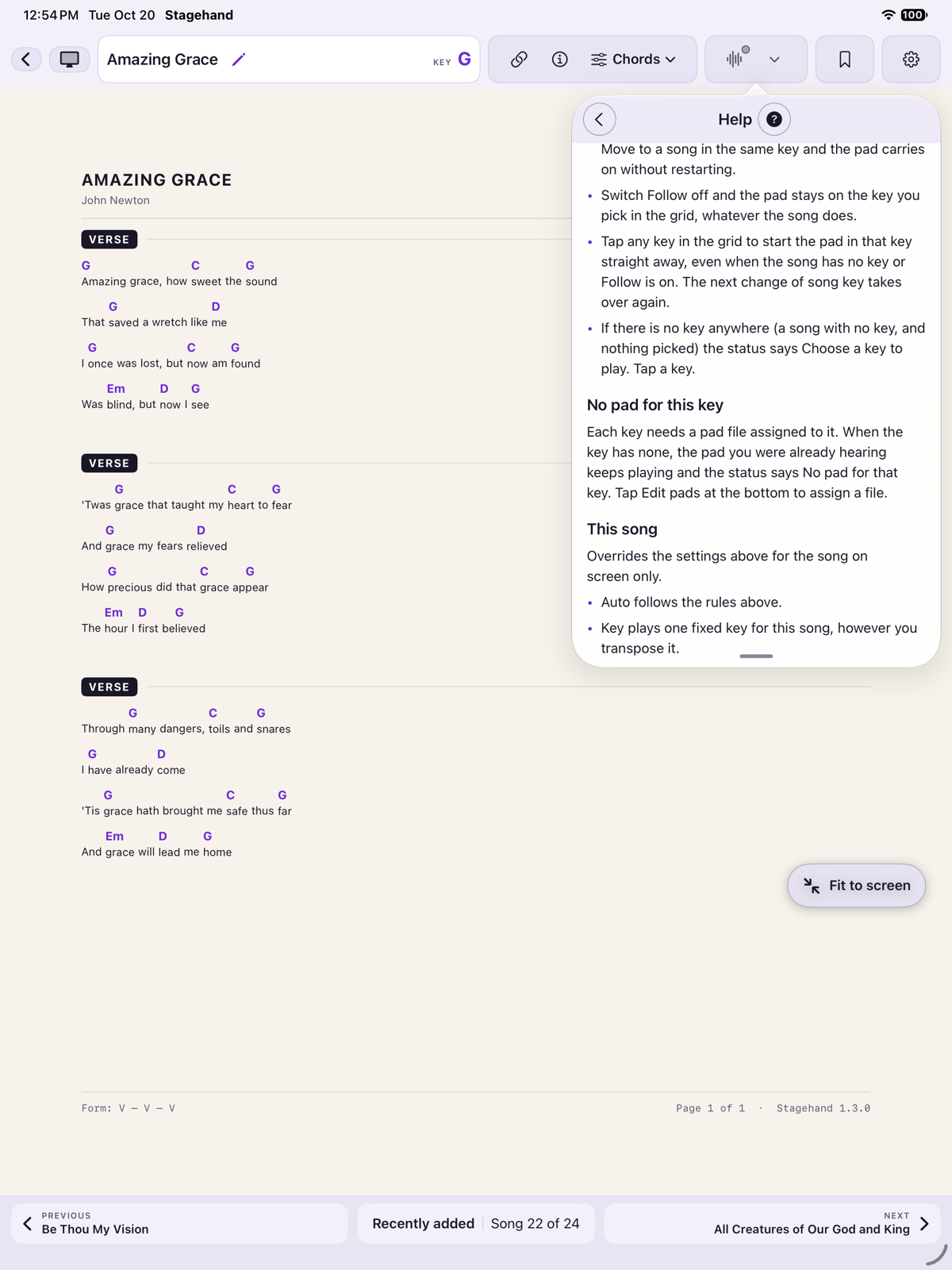
The same key does not restart the pad. A new key crossfades. If that key has no file, the pad already playing keeps going and the panel says so.
Follow the song
Follow the song’s key uses the sounding key, after transpose. It does not use the capo shape. Turn it off and the key you picked stays put. You can start a pad in any key, including on a chart that has no key.
A single song can be set to Auto, a specific key, or Off with This song. That choice wins over the follow switch.
Your pad files
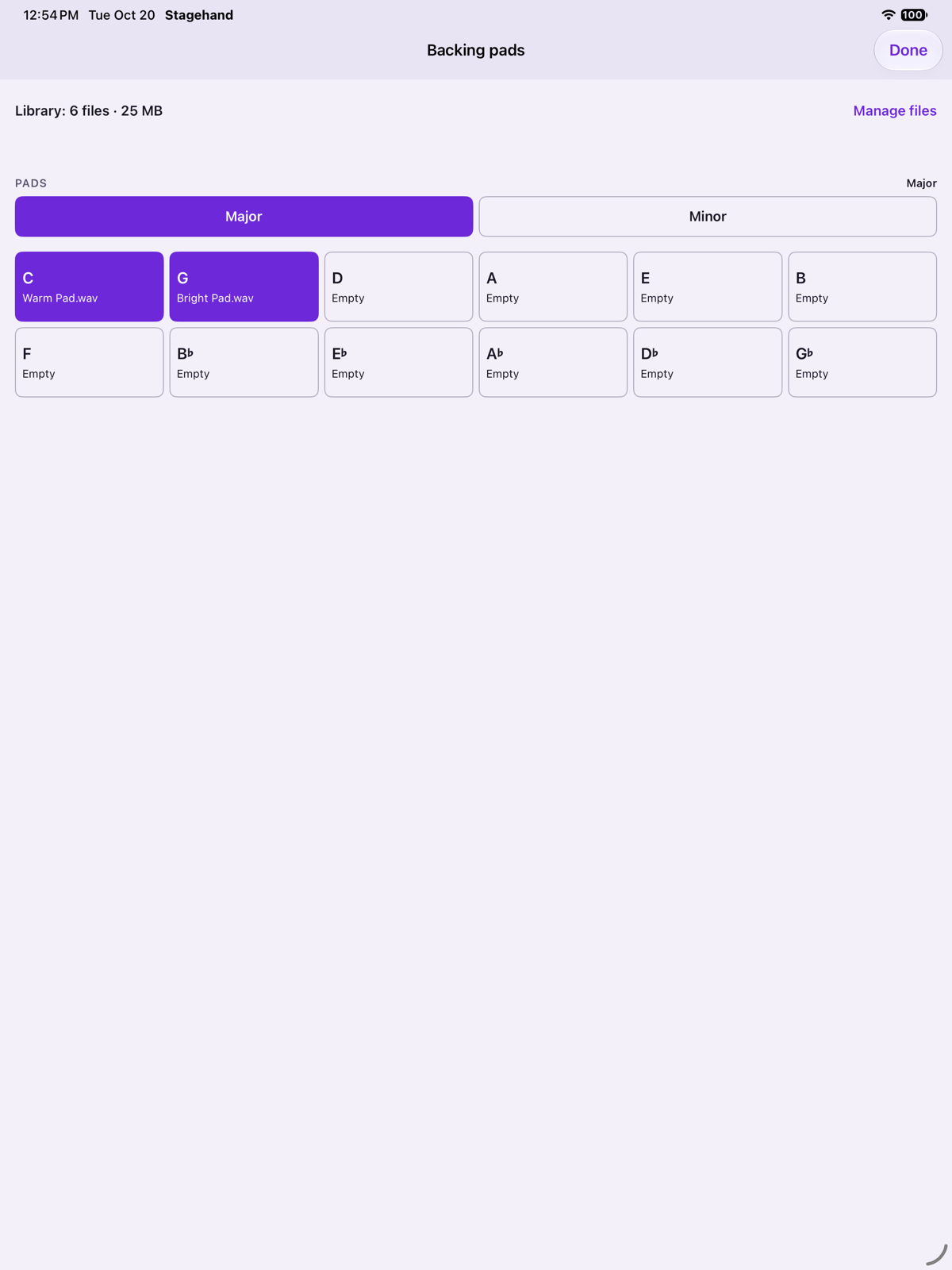
One library of files is shared by every song library. There are twenty-four slots: twelve major and twelve minor. C♯ and D♭ are one slot. Tap Edit pads… beside the key grid to import files and give each key a file. Accepted files are mp3, wav, m4a, aiff, and caf. The app copies them into its documents. It does not keep a link to the place you picked them from. One file can serve several keys. You can also manage the library from a computer with the web console.
Song tracks
Open Chords and the Media tab. Add track takes a file from the same audio library, or imports a new one. Several files can sit on one song. Tag a file with the key it was recorded in, or leave it as Any key. One file per key can be the default.
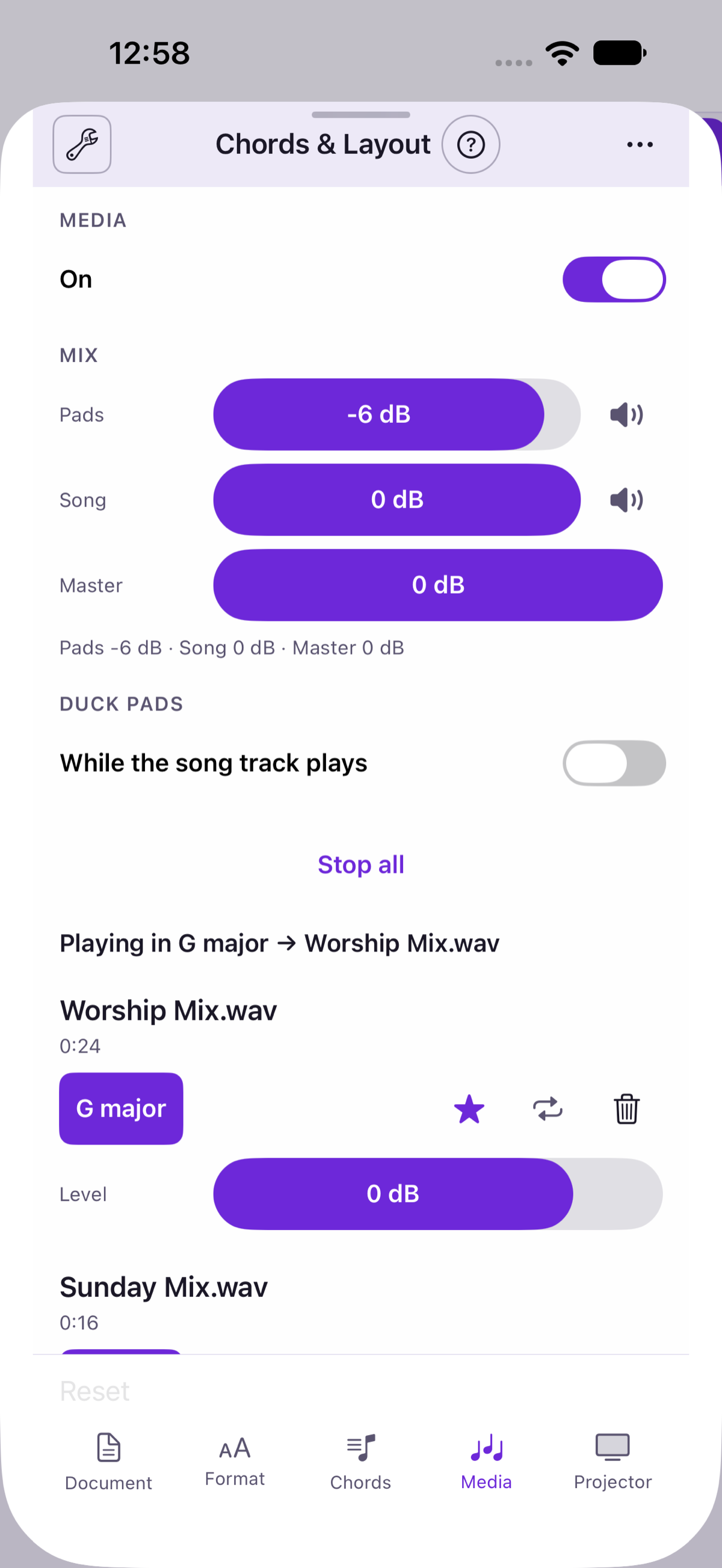
Nothing plays until you tap play on the bar above the footer. Changing song fades the track out and does not start the next one. If you transpose while it is playing, it keeps going and the bar says the track no longer matches. Switch moves to the file that does.
An audio file added through Add Songs is not added as a song. Add it from Backing pads or from a song’s Media tab.
Levels
Pads, the song track, and the master each have a level. The pad level is in the Pads panel, with a mute. The song and master levels are in the Pads panel’s Mixer and on the Media tab. Mute is per channel. Duck pads while the song track plays is off until you turn it on. Stop all fades both out. Limiting appears when the master limiter is working. The limiter is always on, so a loud file cannot distort.
On stage
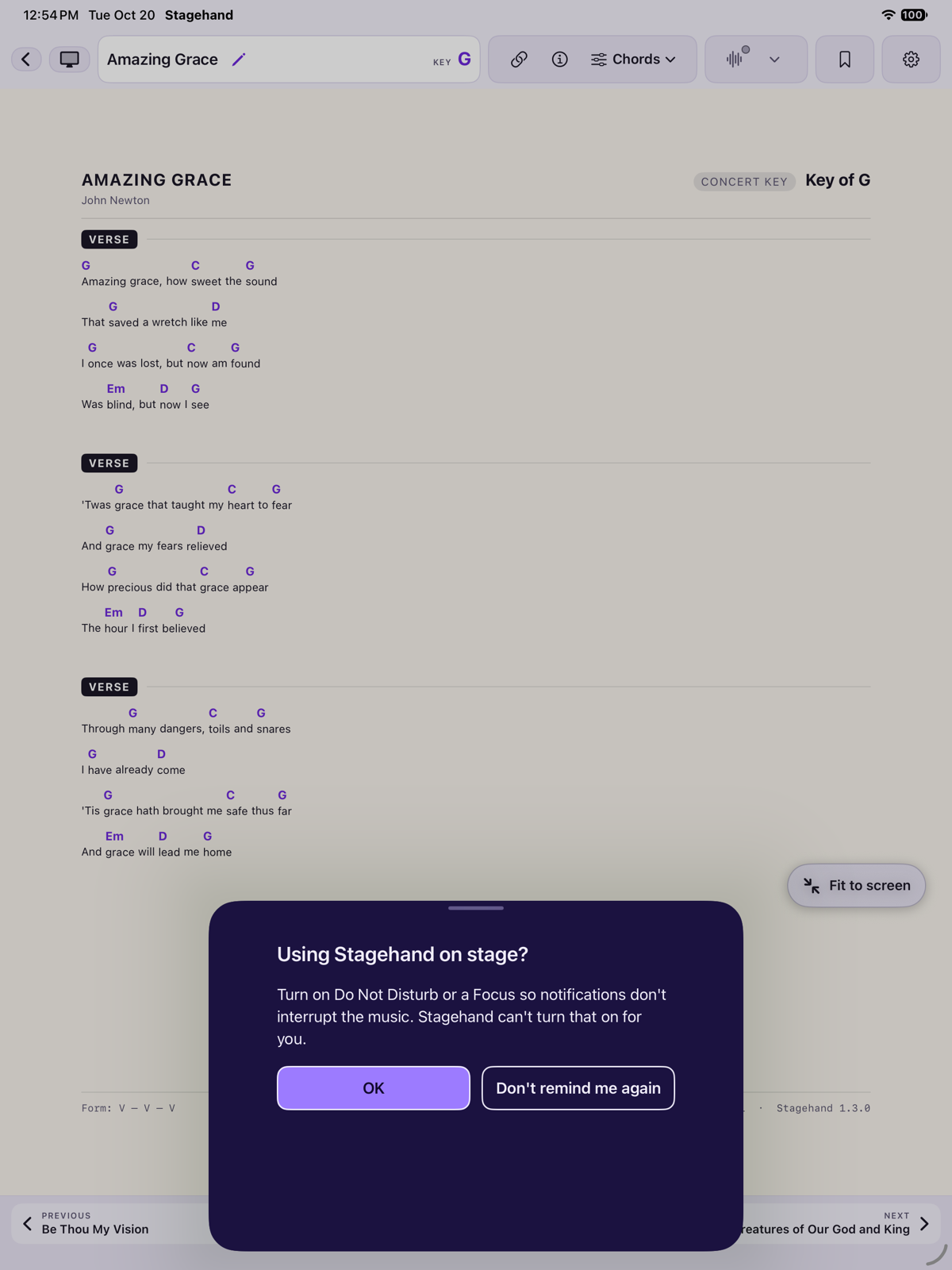
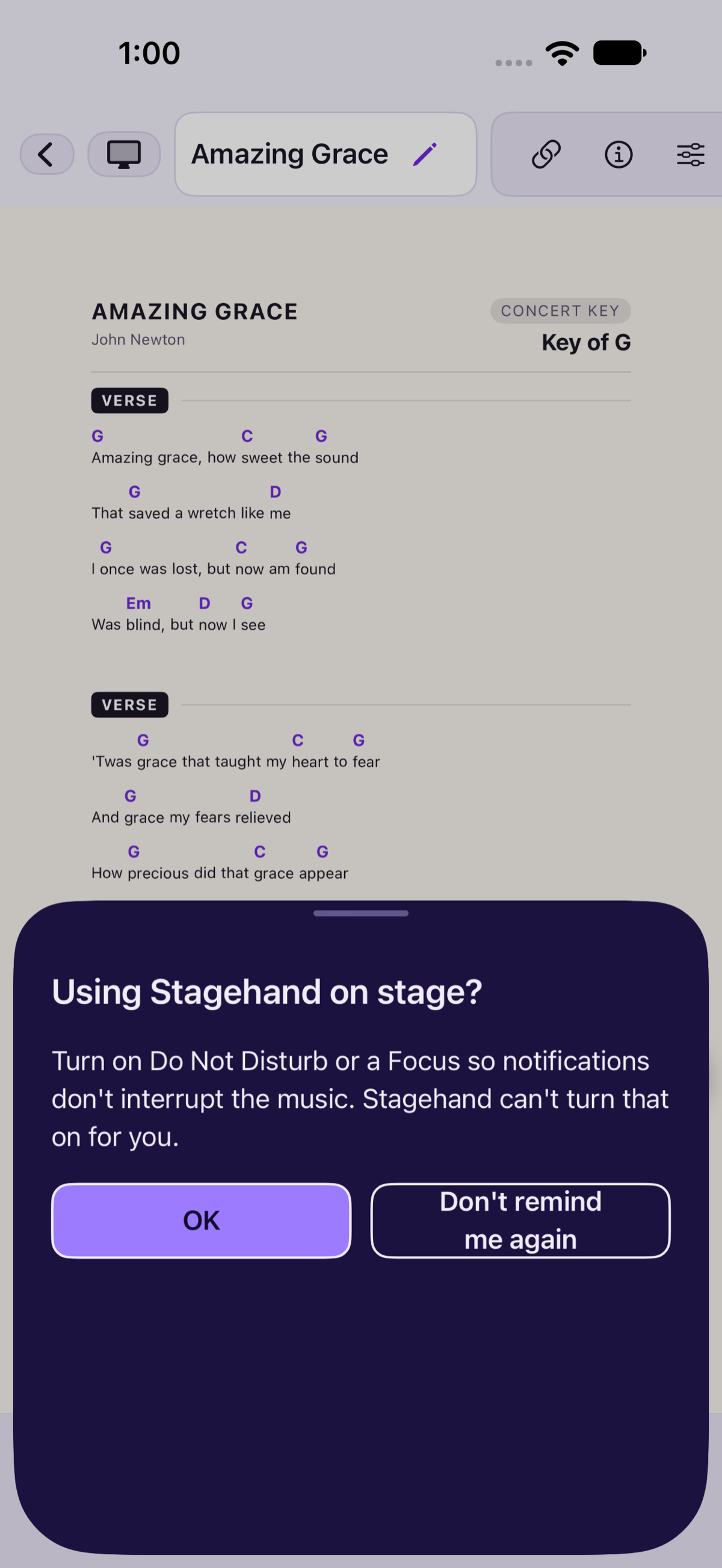
The first time you start pads or play a track, Stagehand suggests Do Not Disturb or a Focus. It cannot turn that on for you. You can choose Don’t remind me again, and bring the reminder back with Show audio reminders again in Settings.
Playback continues when the iPad locks or you switch apps. The lock screen controls the song track only. Unplugging headphones pauses. It does not jump to the speaker. The ring and silent switch does not mute pads.
A backup includes the assignments. The audio files themselves are included only if you turn Include audio files on. See Backup and restore.
If nothing plays
- The light is orange. Read the status line. No pad for G major means that key has no file: tap Edit pads…. Choose a key to play means the song has no key and none is picked: tap a key.
- Paused by the system. A call or another app interrupted the sound. Press Play.
- The status says it could not start. Press Play again. Stagehand already tried once more on its own.
- Check the pad Level is not muted or at the bottom, and the iPad volume is up.
- A file that cannot be read shows File missing in Backing pads. Add it again.