 Stagehand
Guide
Libraries
A library is one body of work: Sunday morning in one, a covers band in another. They do not share songs, indexes or sets. They do share how you read.
Open it
Tap Songs. The title is the library you are in. Three tabs:
- All songs — every chart, with topics along the top and keys along the bottom.
- Indexes — built-in and manual lists. See Indexes and sets.
- Sets — ordered lists with a key, capo and note per song.
On iPad the tabs sit in the top bar. On iPhone they are a tab bar along the bottom.
Switch, create, rename, delete
- Tap the library title.
- Choose another library to switch. The open song does not come with you, because it is not in the other library. Stagehand remembers which library was active.
- Create a library when the two bodies of work should not see each other.
- Rename changes the name you see. The folder on disk keeps the name it was given at creation, so a rename cannot break stored paths.
- Delete removes that library’s charts. The confirm message includes the song count. A library with more than a handful of songs asks you to type the name. The last library cannot be deleted.
All songs
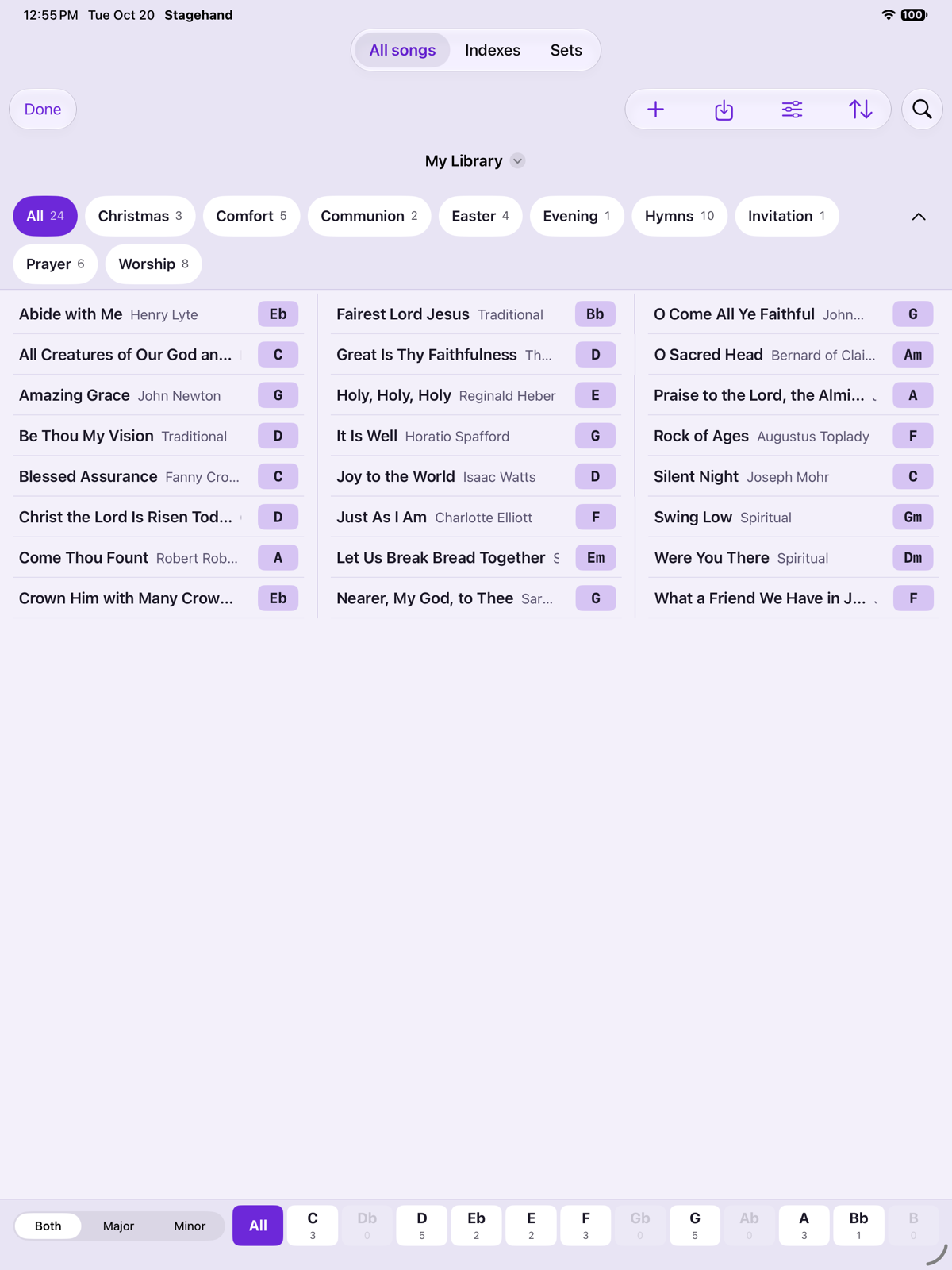
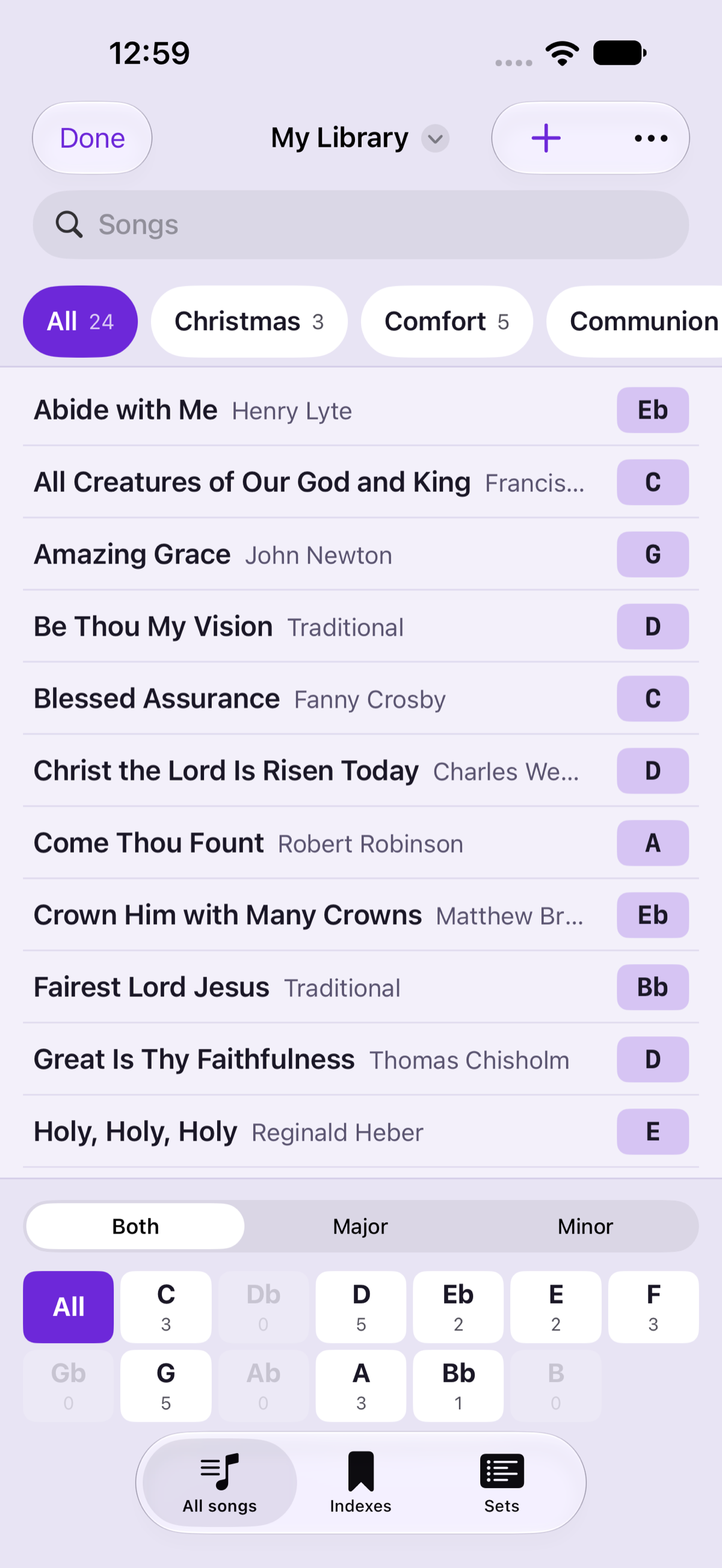
Each song is one line: the title, the artist in a quieter colour, and the key at the end, with its mode (Am, F#m). Tap a row to open it. Press and hold a row for Topics or Delete. Delete asks first, then removes the file from this library.
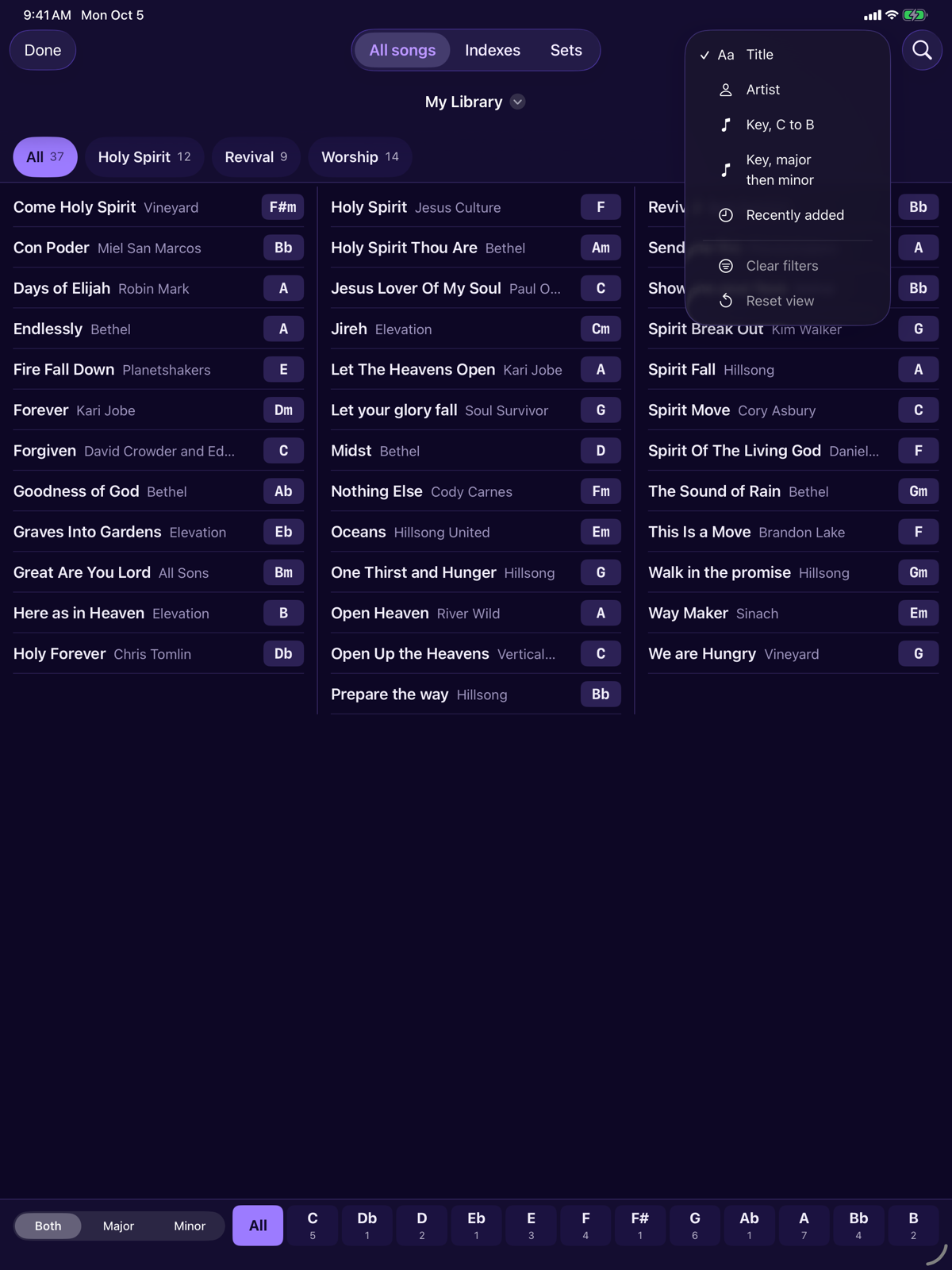
On iPad the list runs in columns that read top to bottom, so most of a library fits on one screen. On iPhone it is one column. When the list is grouped, by key or by topic, each group starts with a coloured band across the column: the name and how many songs. The same band is used in All songs, in Indexes, and on the index you open from a song.
From the list, the import button opens Add Songs. On an empty library an Add Songs button is in the empty state. See Importing and Editing a chart.
Keys and topics
Every key is always on screen, with the number of songs it would show. Tap one to keep only those songs. Tap it again, or All, to clear. A key with no songs is dimmed. Both, Major and Minor sit with the keys. Minor writes the m, so Am and A are separate chips.
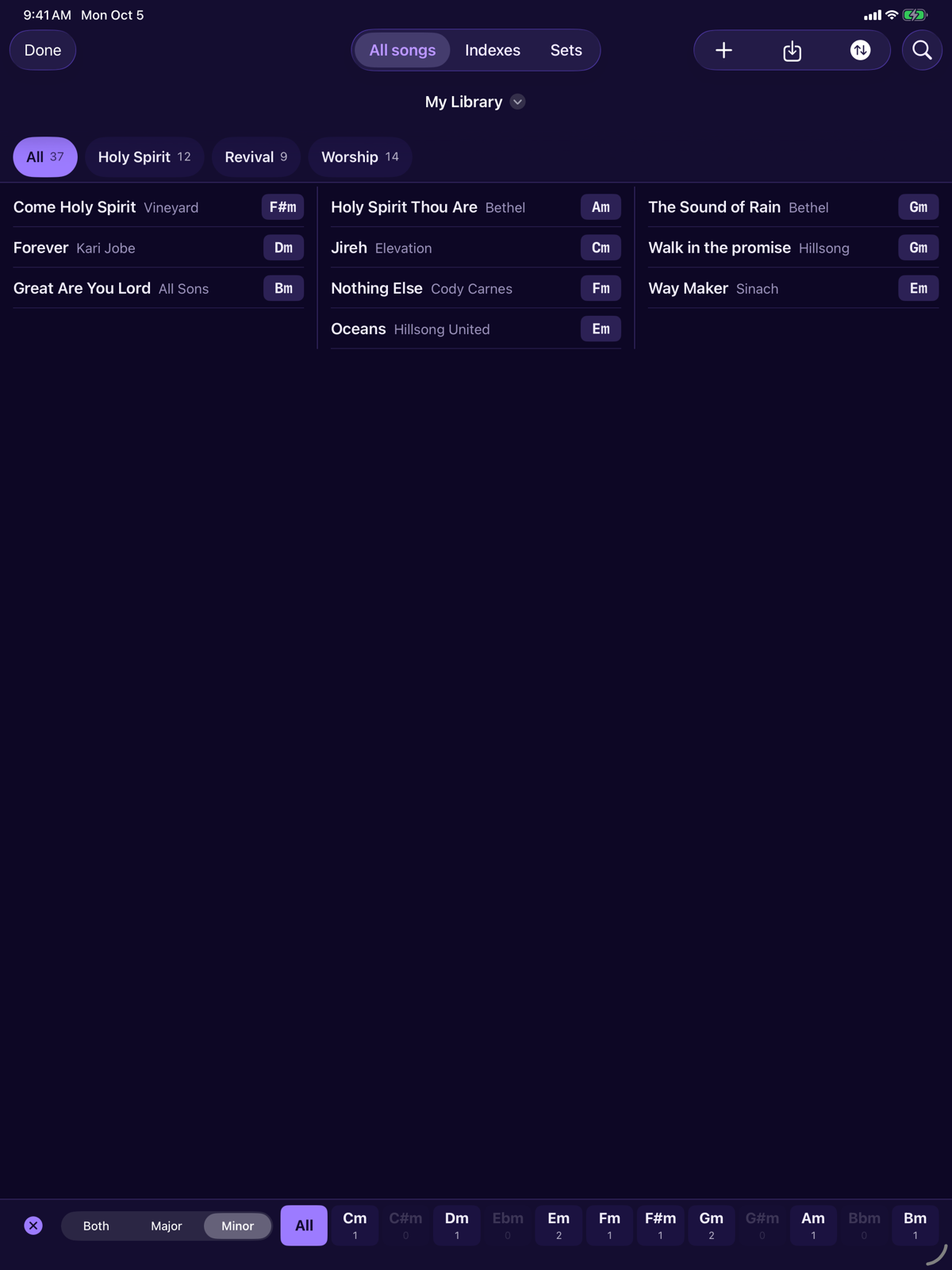
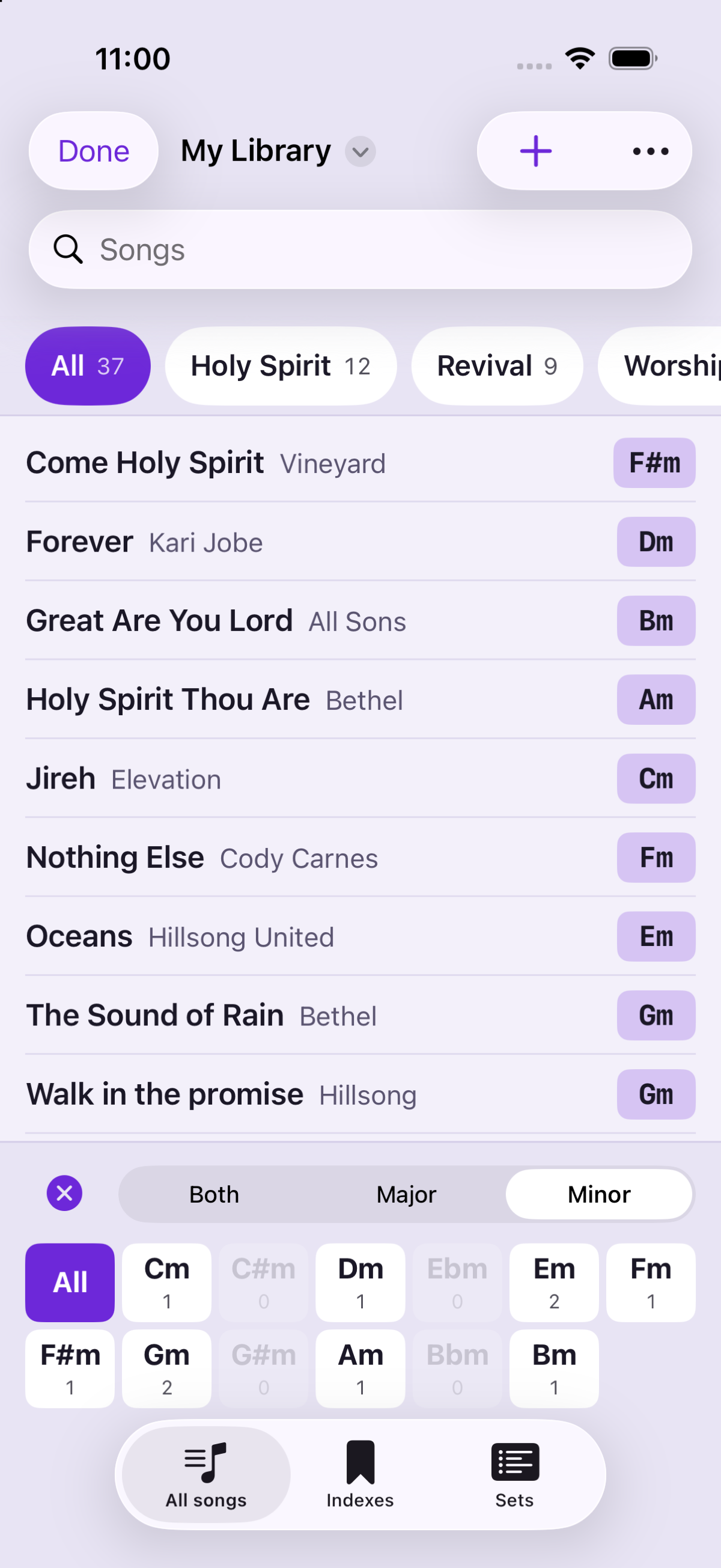
Topics are the chips along the top, each with a count, plus All, and No topic when some songs have none. A view options button on that row is remembered separately for All songs, for Indexes, and for the index you open from a song. You can hide the chips, keep them in one scrolling row, or wrap them in a grid. You can pick one topic or several. Several topics match a song that has any of them, or, if you switch it, a song that has all of them. Order is alphabetical, or most songs first. Indexes and the footer index leave the chips off until you turn them on, so those screens look as they did before. A topic, a key and a search combine.
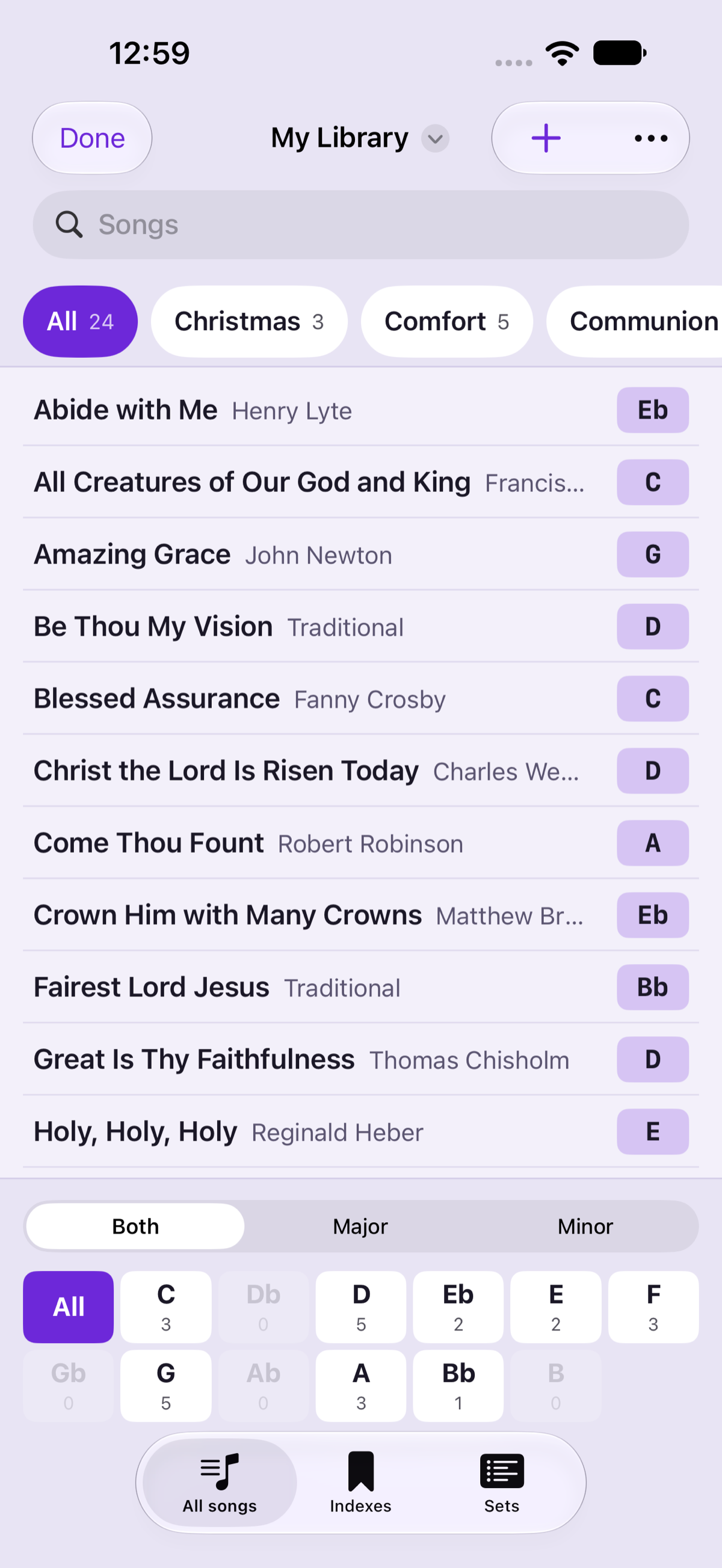
A topic is a word on the song, such as worship or slow. A song can carry more than one. Set them in the editor’s Topics field, in the gear menu’s Editors, or with a {topic:} line already in the file. Deleting a topic removes it from every song that listed it. The confirm step says so.
Sort
The sort button offers Title, Artist, Key, C to B, Key, major then minor and Recently added. Sorting by key groups the songs under a coloured band for each key, with a count. The same band is on the Indexes page.
Search
The search field filters the list as you type. It matches title, artist, topics and the lyrics. Chord brackets are ignored, so a search for beloved finds bel[Dm]oved. It does not search by reading every file from scratch each time. The index is updated when files change.
An empty search result says no songs match, and offers Clear filters.
It remembers
The tab, the sort, the topics you picked, each screen’s topic options, the key, the search and the open index stay when you open a song and come back, and after you quit the app. Where you had scrolled to does not. While a filter is on, the cross at the start of the keys clears topics, key, mode and search together. Clear filters in the sort menu does the same. Reset view also puts the sort back to Title. View options has Reset this view for that screen’s chips. Switching library clears the view, because the other library has different topics and keys.