 Stagehand
Guide
Sharing a song
One iPad shows the song it has open. Other iPads and iPhones nearby, running Stagehand, can show that same chart. It stays on your network. There is no account, and a song is not copied unless someone chooses to save it.
Start sharing
Tap Share in the song menubar, or Share session in Utilities. Both disappear if Share Sessions is switched off under Modules. The sheet is titled Share this song. Start sharing is off. Nothing is advertised, and iOS does not ask for the local network, until you turn it on. It is not turned on for you the next time you open the app.
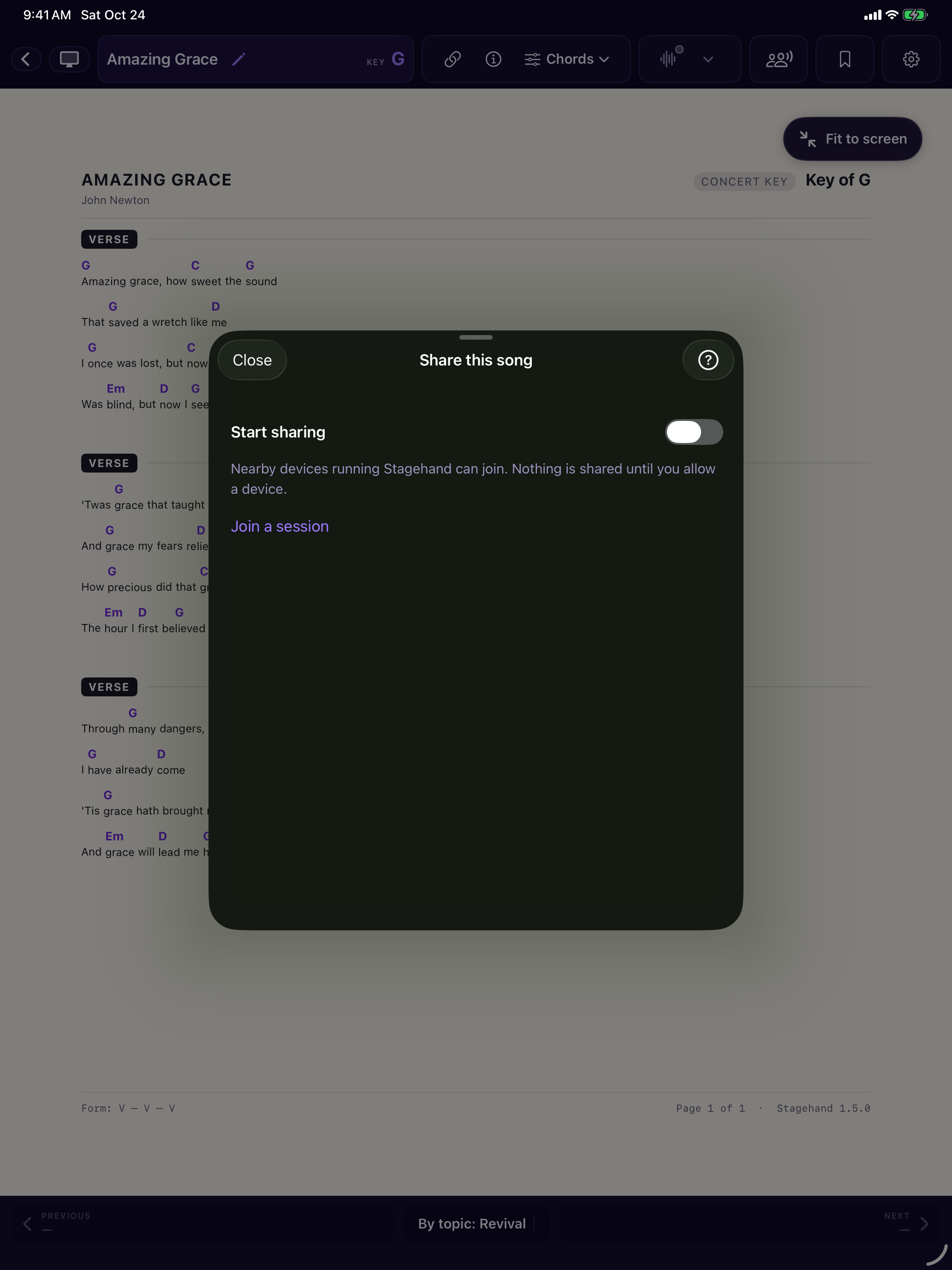
Turn Start sharing on. The first time, iOS asks to allow Stagehand on the local network. After that, devices that open Join a session can see this iPad by its name. The name is the one in Settings > General > About > Name; iOS only tells apps a generic name, so Stagehand rebuilds it from the network name (an apostrophe cannot be restored). To use another, type it under This device’s name in the Share sheet. Each one asks to join with a popup, wherever you are in the app. Tap Accept to let it follow your song, Accept with control to let it change the song too, or Reject. Accepting lasts for this session only. A device you allowed can drop out and come back without asking again, until you end the session, remove them, or they quit the app.
A session holds eight devices, including yours. A ninth is told the session is full.
Join
On the other device, open Share and tap Join a session. Nearby hosts are listed by name. Tap one and wait. If the host declines, the row says they didn’t let you in, and you can ask again.
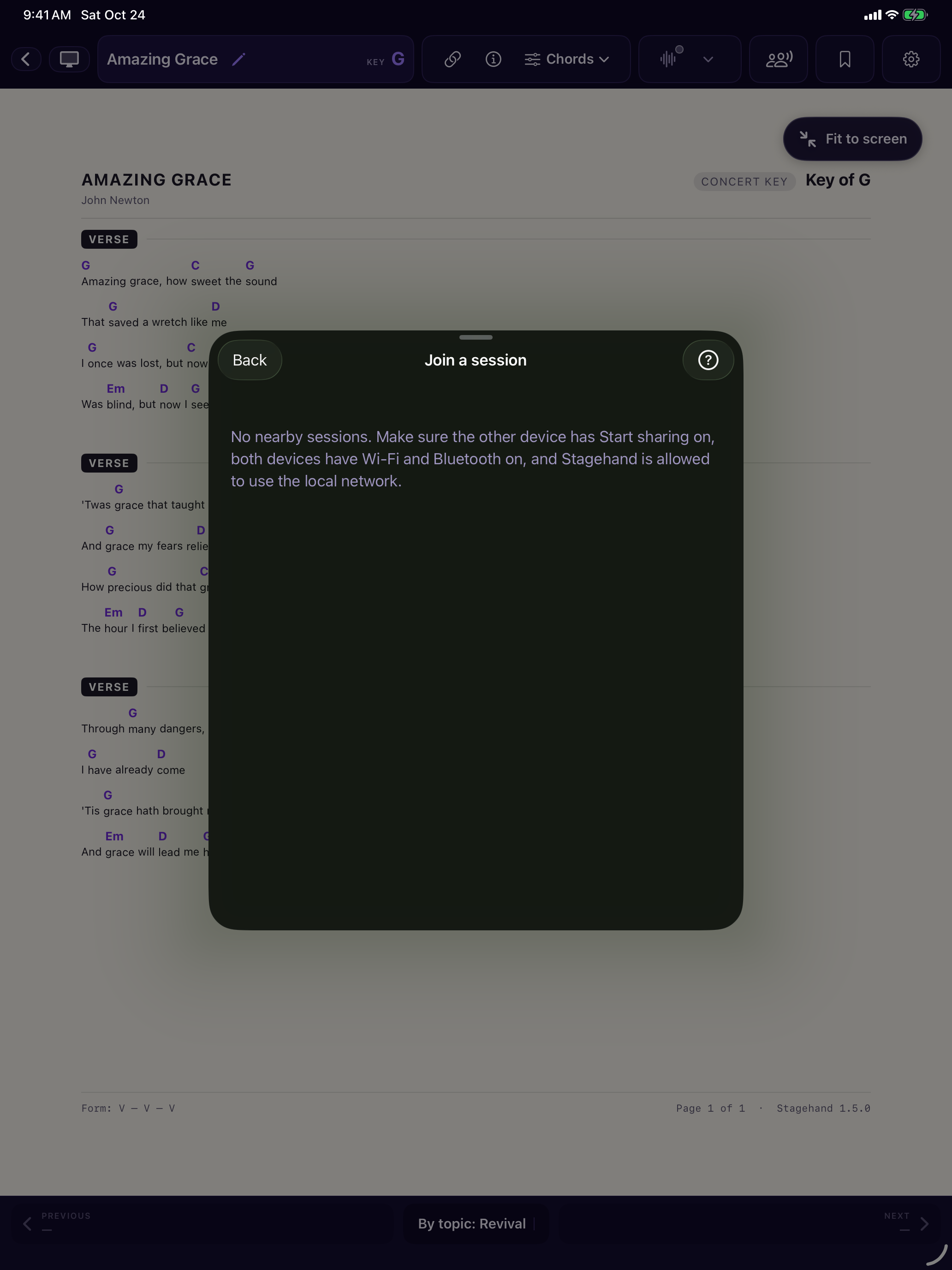
If the list stays empty, turn on Wi-Fi and Bluetooth on both devices, and in Settings allow Stagehand to use the local network. The devices have to be near each other. Sharing does not use the internet.
While you are in
You see the host’s song, including one that is not in your library. Chord positions match, including Arabic and mixed English and Arabic charts, because the chart file is sent, not a picture of it. Line formatting that is written in the file comes with it. Type size, colours and the other Format settings stay yours.
The song is on the normal song screen, so everything you use for your own songs is there. Editing and Attachments are dimmed until you save the song, because it is not in your library. If you open a song from your own library you are away: the host’s song waits, and the Share button shows a ring instead of a dot. Return to host’s song in the Share sheet brings it back. The previous and next buttons at the bottom walk the host’s list for a controller.
You open on the host’s key and capo. You can change your own key and capo; that does not change anyone else’s. Follow host in the Share sheet puts you back. When the host picks another song, a local key change is cleared and you follow again.
A PDF shows progress, then the pages. Going away and back uses the copy already received. A PDF over 50 MB is not sent.
The screen stays awake while you are in the session. It sleeps again after you leave.
Letting someone change the song
On your sheet, each device is a Viewer or a Controller. A viewer can look at your list and cannot change the song. A controller gets a Host’s songs tab in the library, next to Songs, Indexes and Sets. It works like All songs, with its own topic, key and sort choices, and searches the host’s list, including words from the lyrics. Tapping a song shows it to everyone. They can also send a song from their own library. Everyone sees it, with who sent it. Your library does not gain a file.
Only you change the key and capo that the session follows, and only you allow, remove or change a device’s role. If you set a controller back to viewer while they are choosing, their next selection is refused.
Save to library
Save to library in the Share sheet uses the same review as any other import. You see what will be added or replaced. Cancel writes nothing. Confirm adds the song. Saving it again shows the usual conflict. The same control is on the host when someone has sent a song the host does not have.
End or leave
Remove disconnects that device and forgets that you allowed them. They can ask again. End session asks first, then tells everyone. They keep the chart on screen, with “The host ended the session”, until they tap Close, which returns to their own library and the song they had open before.
Leave on a guest does the same return, without ending the session for everyone else. A ? on the sheet explains the controls.
Pads, song tracks and the projector stay on the device that is playing them. They are not shared.