 Stagehand
Guide
Reading a chart
The chart is the page. Everything else is a control you can put away. On a narrow screen the menubar scrolls sideways so the Songs button stays on the left, and the title stays readable.
Menubar
| Where | Control | What it does |
|---|---|---|
| Left | Songs | Opens the library. The second line names the index or set you are walking, and the count of songs in the library. |
| Left | Bookmark | Right next to Songs. Opens the index sheet, so you can jump without leaving the song fully covered. Hidden when Indexes (Quick Access) is off under Modules. |
| Left | Projector | Beside the bookmark. Hidden when its module is off. Presents or stops when a second screen is connected. Otherwise it explains what to connect. See Projector. |
| Centre | Title and pencil | The song name. The pencil is Edit song. |
| Centre | KEY | The key being played, after transpose and capo. Missing when the chart has no key. |
| Centre | Tempo | Beats per minute, and the time signature when the file has one. Hidden when there is no tempo. |
| Right | Link | Attachments: extra chart or PDF files on this song. |
| Right | Info | Duration, copyright, CCLI and other fields from the file. Not playing instructions. |
| Right | Chords | Opens Chords & Layout: Document, Format, Chords, Media and Projector. |
| Right | Pads (waveform) | Starts the backing pads, or stops them when they are on. A small light on it is green and pulsing while a pad sounds. The chevron beside it opens the Pads panel with Play, Pause and Stop. See Pads and tracks. |
| Right | Gear | Utilities: backup, restore, editors, settings, support, web console and tools. |
The Chords button stays highlighted while that panel is open. Panels anchor to the control that opened them so the chart stays visible beside them on iPad. On iPhone the panel is a sheet.
On a compact width the left group collapses to an icon and the centre pill to the title. On an 11-inch iPad held upright, Songs and Projector shrink to icons so the gear stays on screen. When even that does not fit, the row scrolls sideways, so Songs is never pushed off the left edge.
Every panel has a ? beside its title. Tap it and the panel’s controls are replaced by its documentation, written for that panel. The arrow at the left returns to the panel. On the Chords & Layout panel the ? follows the tab you are on.
What is on the page
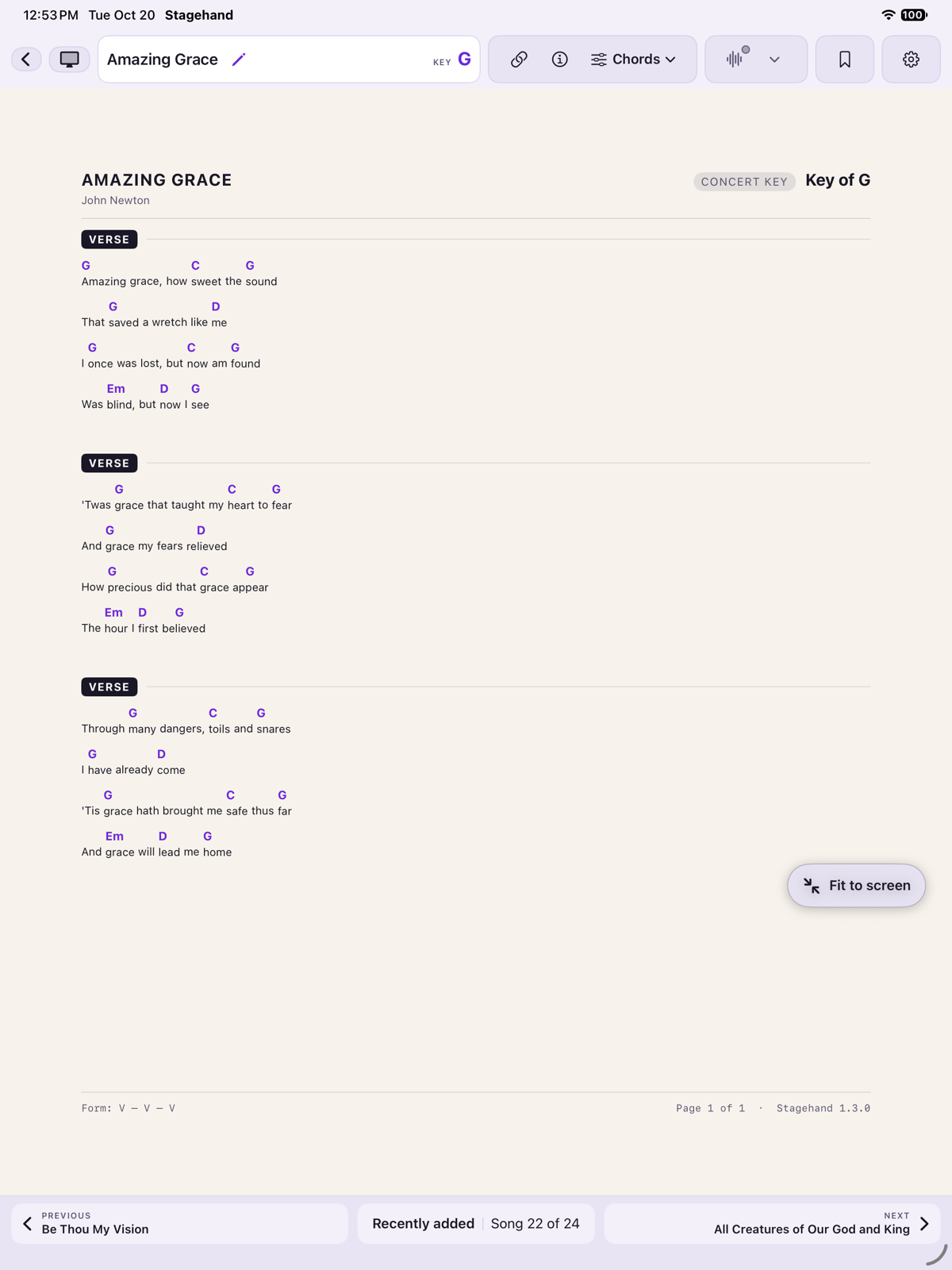
The paper fills the screen edge to edge. The song is drawn on it. There is no card around the page. The title, artist and key use the Header and Metadata styles from the Format tab. Chords sit above the lyric they belong to, including a chord in the middle of a word. Lines wrap on words and take their chords with them. A line that is only chords is not wrapped, because the spaces are the timing.
A song opens already fitted to the screen, so the whole chart is in view. The button then reads Back to zoom. Tap it to return to normal size. Tap Fit to screen to fit it again. Drag the button to move it. Moving it does not fit or zoom. The size you had on an earlier visit is not restored when you open the song. The button is not shown on a PDF. Hide it from the gear menu: Settings, then Show fit-to-view button.
The pictures below were taken after leaving that fitted size, except the one whose button reads Back to zoom. There is no picture of the Section Spacing slider; it is on the Document tab.
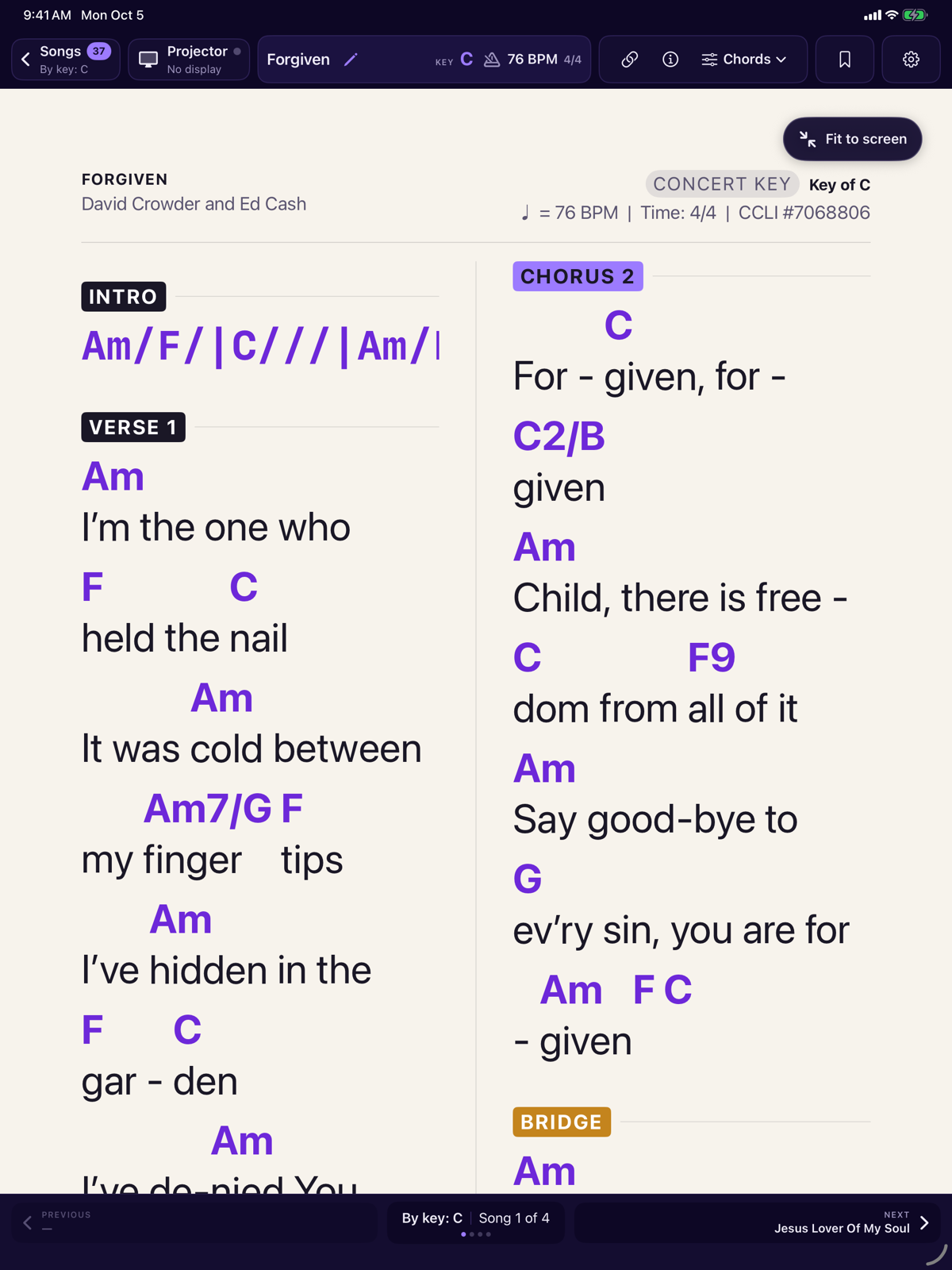
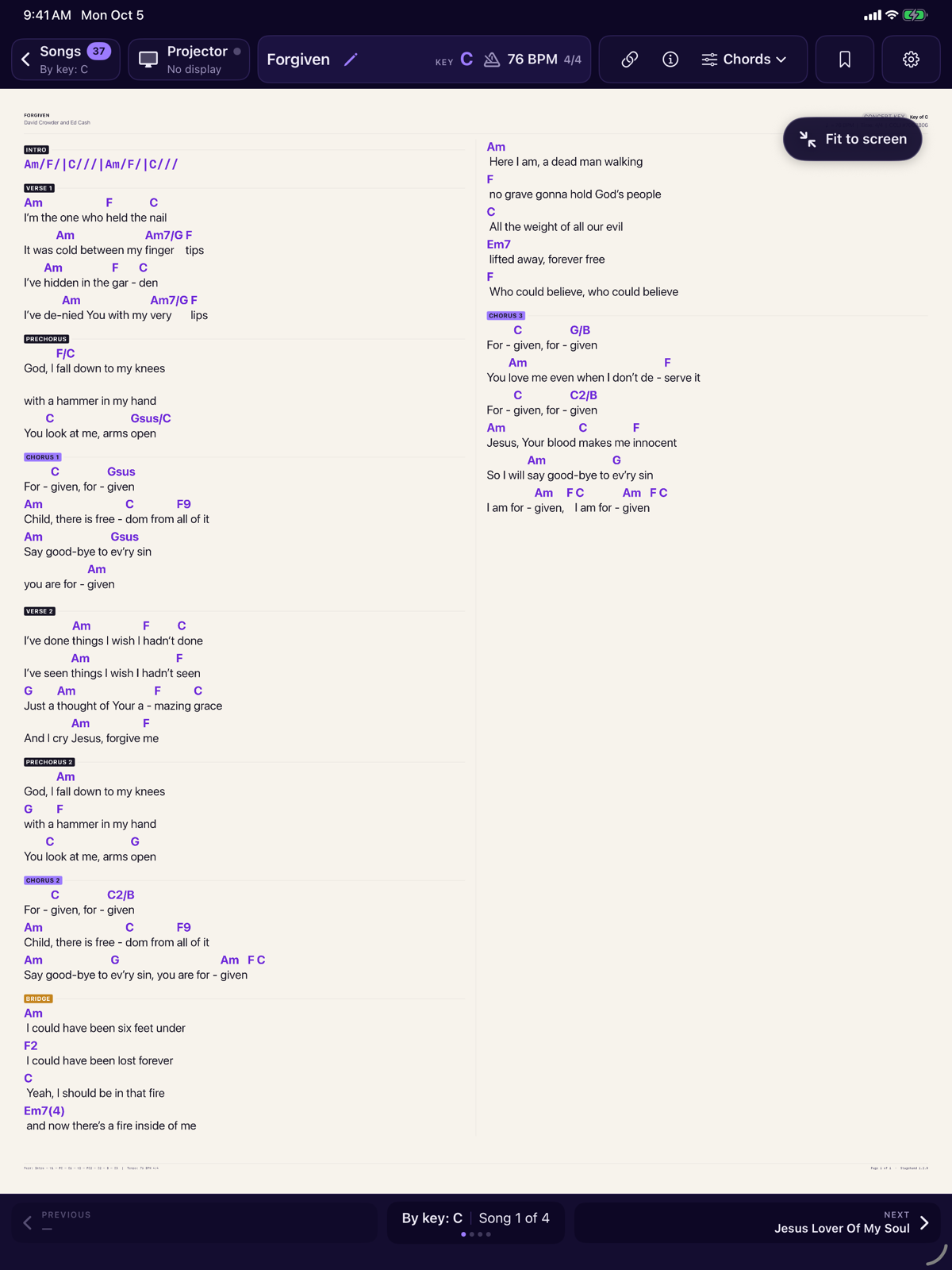
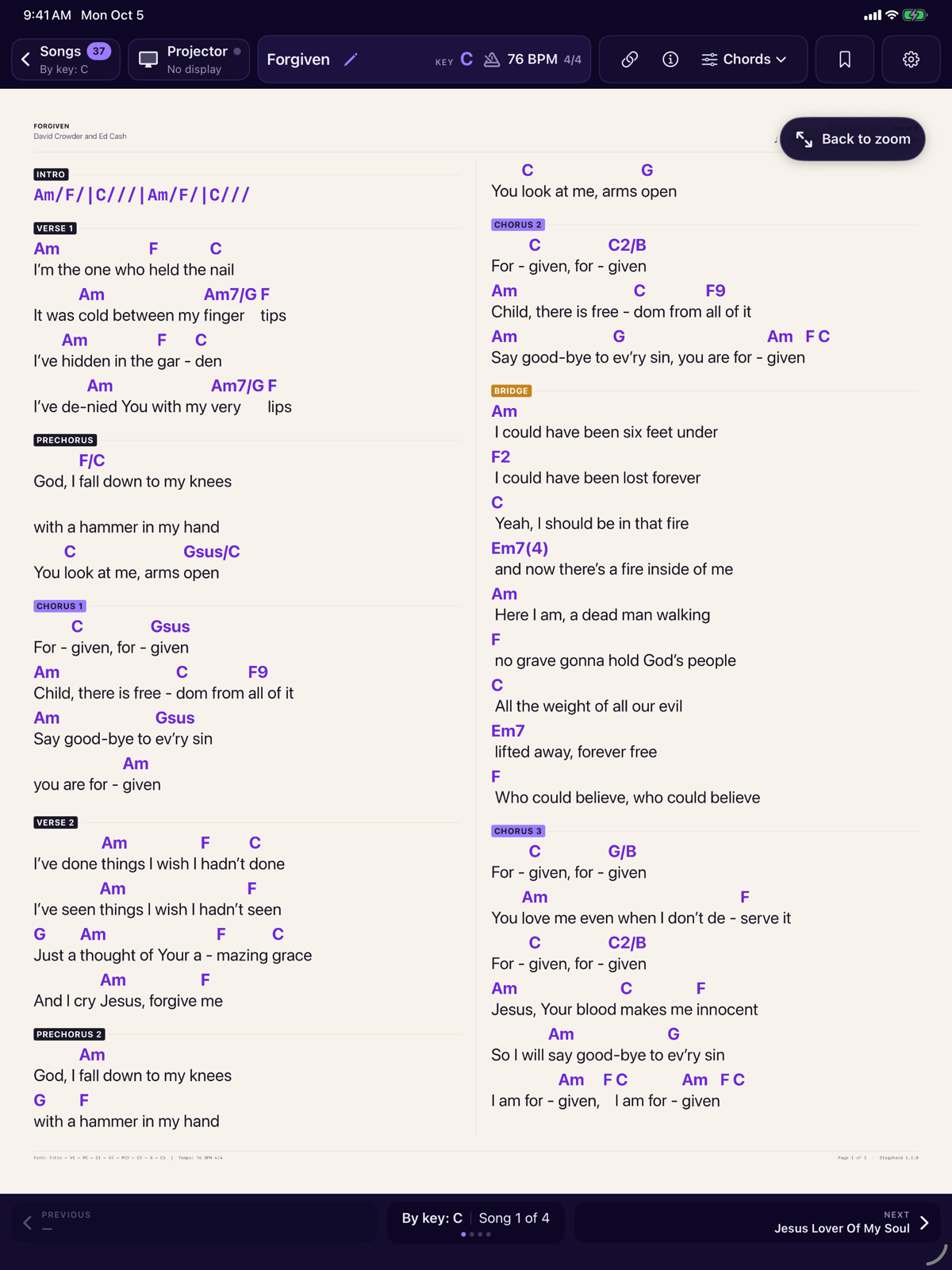
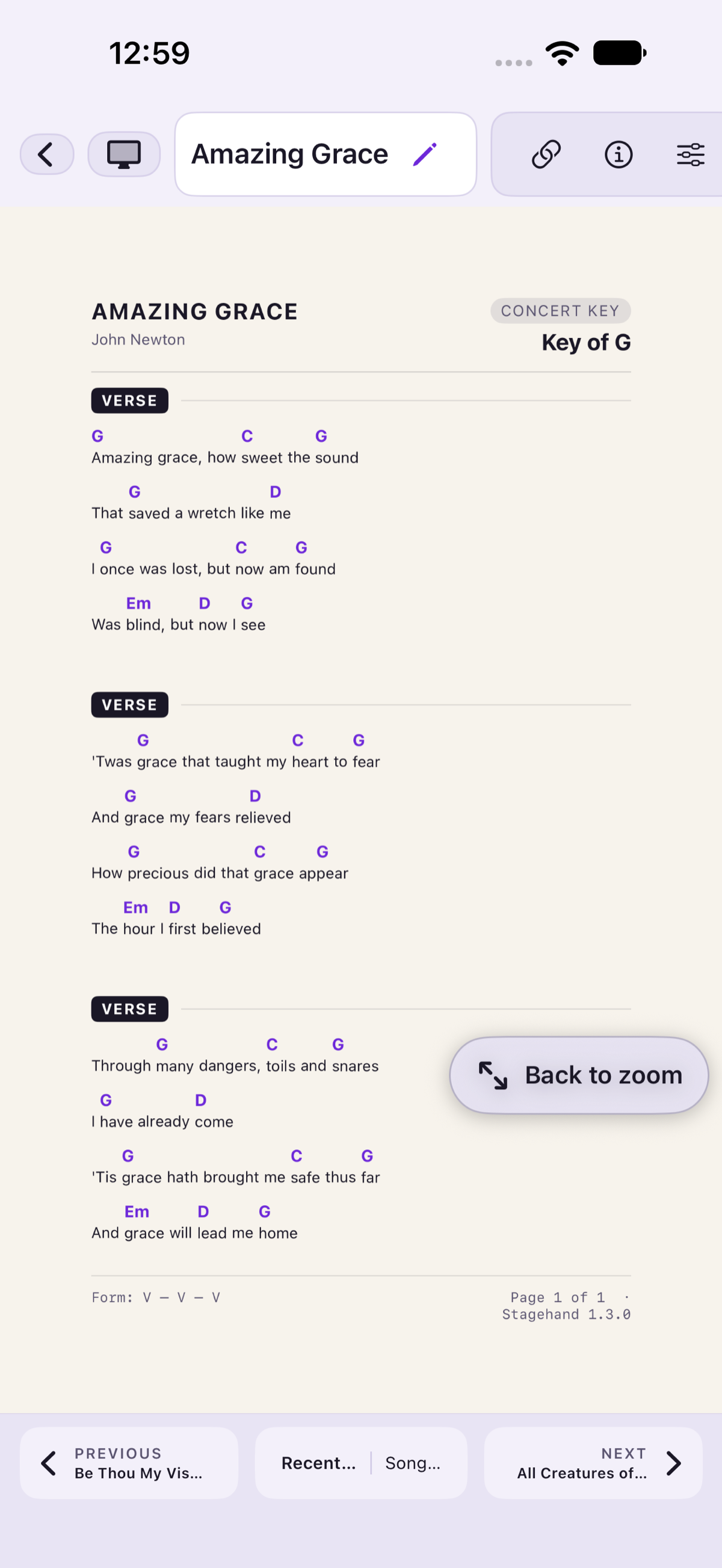
A section such as a verse or chorus is a coloured badge and a rule. Tab and chord-only instrumental lines stay monospaced. A comment under a rhythm line is shown in italic.
The page footer shows form and tempo when the file has them, plus a page line. That footer is part of the chart, separate from the app’s previous and next controls.
Zoom
- Pinch on the chart. Pinch in up to 400 percent. Pinch out and, below the width of the screen, the page still spans the screen and a long line stays on one line.
- Double-tap to switch between fit-to-width and the last zoomed-in size. A pinch or a double-tap also leaves the Fit to screen size, so Back to zoom is no longer offered.
- Pan with one finger when you are zoomed in. Scrolling up and down stays where you left the song sideways. Drag left or right when you mean to move it that way.
A pinch is kept for that visit. It does not change the font sizes on the Format tab. Those are the type you want when the chart is at normal size. Opening the song again starts fitted, not at the pinch you left.
A PDF uses the system PDF pinch gesture, and that zoom is kept on the PDF. A chord chart does not: it opens fitted. Transpose controls on a PDF are disabled, with a reason, because a PDF is a fixed page.
Hide the chrome
After you tap, scroll or zoom, the menubar and the previous/next footer can hide so the chart uses the screen. Tap the page to bring them back. Auto-hide does not run while any panel, sheet or alert is open, and it does not start until you have touched the chart. The bar waits three seconds after the panel closes, then hides. It does not hide a panel from under you. Changing songs keeps full screen: the toolbar stays hidden.
While you are presenting, and the chrome is hidden, the footer stays as a floating bar so you can still change songs. A chevron collapses it to a small Songs tab. There is no separate picture of that bar.
Turn it off in the gear menu: Settings, then Auto-hide toolbar. The note there says the menubar hides after a few seconds and a tap brings it back.
Previous and next
The footer under the chart walks the current index. The centre names that index or set, the song number, and a short row of dots. The chevrons move to the previous and next entry in that list. Naming the list is deliberate: you can see where Next will land before you tap it.
A two-finger swipe left or right does the same turn. One finger stays free to pan a zoomed chart.
Choose which list that is from the bookmark, or from Indexes and sets. If you have not chosen one, the built-in indexes are still there.
Info, attachments and the index
Song info lists extra fields from the file, such as duration, copyright and CCLI. If the file has none, the sheet says so. These fields are not drawn on the chart.
Attachments lists the files that belong to this song, with name, format, key and size, and a tick on the one you are reading. A ChordPro chart and a PDF of the same song can both live here. Edit Chords and Lyrics at the bottom opens the editor for the text chart.
The centre of the footer, and the bookmark, open the index full screen. It is the same list as Indexes: columns, coloured bands, keys along the bottom, and the filters you left. The open song is highlighted. The list does not move to it. Tap a title to replace the song. Done leaves it unchanged.